Browse 100,000 photos.
At the speed of thought.
FlashView is a fast, lightweight photo viewer for Windows - built for photographers who want to see and cull huge archives at speed.
Free for 60 days - buy it if you like
Open a folder with thousands of photos. Scroll through them at full speed. Rate your keepers with a single keystroke, flag the rejects, filter down to what matters - and edit and export what is left, right here.
Fast enough for 100,000+ photos. Rate with a single keystroke - one at a time or a thousand at once. Edit non-destructively, without ever touching the original. Standard XMP, readable in Lightroom, Bridge and Capture One.
Load times for RAW files are practically gone. I now get through my selection at least twice as fast as before. Star ratings, color labels and picks sync perfectly. […] A huge productivity boost!
As a reportage photographer, I often process several thousand RAW files after a weekend assignment. Until now, the first review pass in Adobe Lightroom was sluggish, because building sharp previews simply eats up time. FlashView has changed my workflow drastically: load times for RAW files are practically gone. I now get through my selection at least twice as fast as before. Star ratings, color labels and picks sync perfectly. I still do my developing in Lightroom, but the culling before it has become dramatically faster with FlashView. A huge productivity boost!
The viewer is blazingly fast. I was completely stunned when I opened a folder with many subfolders and tens of thousands of RAW photos and could page through the previews instantly and without any stutter. Compared with Lightroom, it is roughly the difference between a VW Beetle and a Porsche 911 in acceleration and top speed.
One tool for all of it
From the memory card to the finished image - no catalog, no subscription, no waiting.
- ImportFrom the card into dated folders - templates, renaming, verified copy.
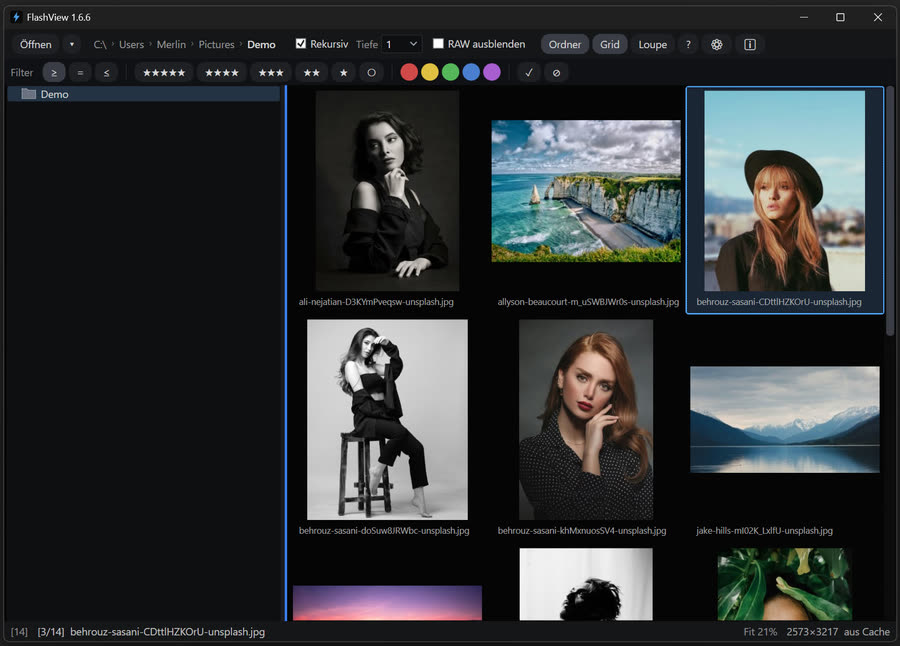
- ViewPage through 100,000 photos without waiting.
- CullStars, colors, pick/reject - one keystroke per frame.
- OrganizeFilter, sort, group, copy to a folder.
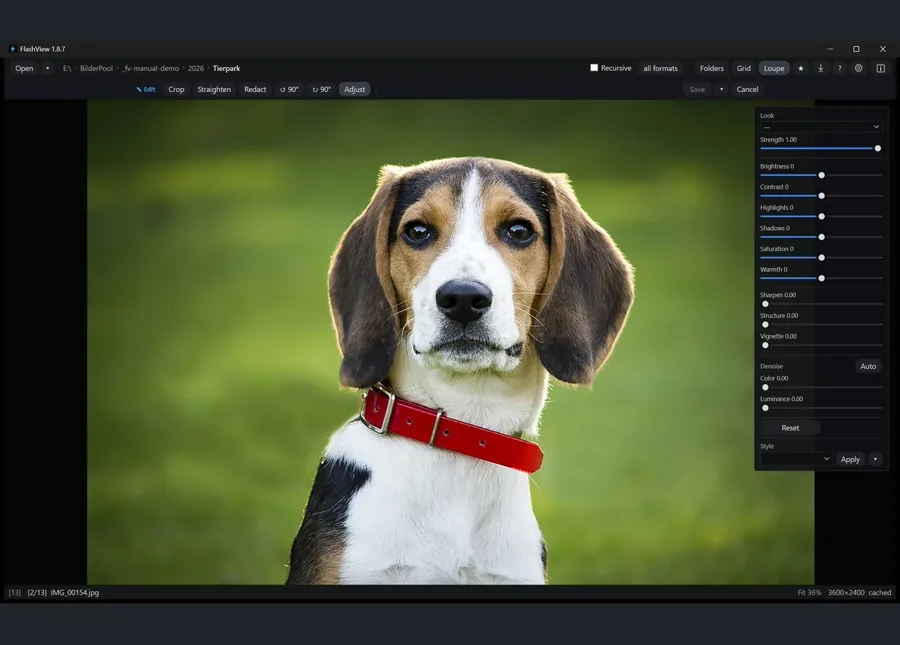
- EditNon-destructive: sliders, looks, crop, redact.
- ExportFinished JPEGs to a folder - or hand off to Photoshop.
Step by step in the manual: the whole way, start to finish → The full comparison with Lightroom →
What sets it apart
Built for massive folders
No pre-indexing wait - open the folder and start scrolling immediately. Stays responsive across archives of 100,000+ photos.
Speed of thought
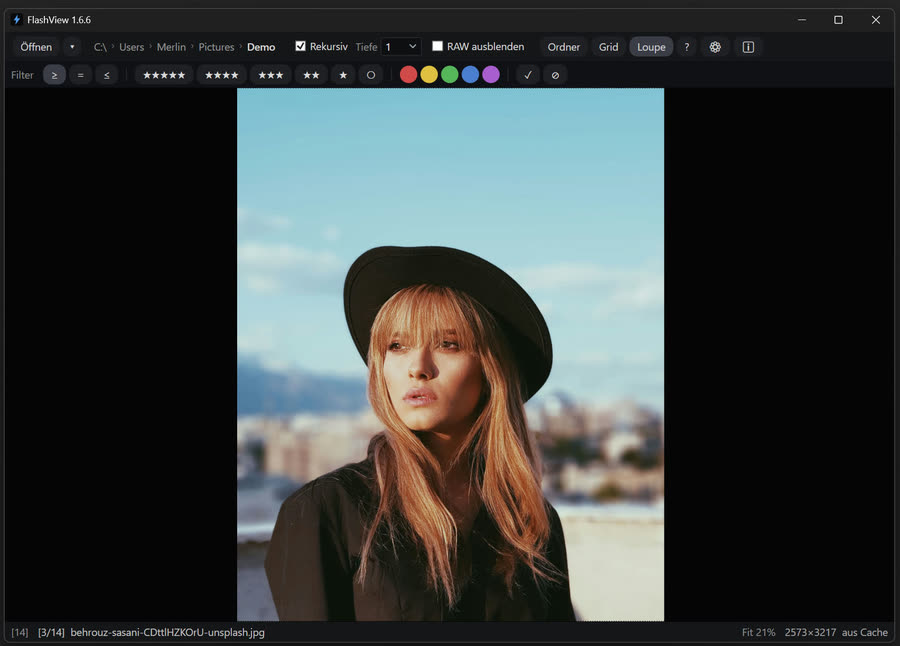
Cursor keys, mouse wheel, scroll - every input moves to the next image without perceptible lag, even on large, high-resolution JPEGs. That’s the Flash in the name.
Native Windows workflow
Right-click any image → Open with FlashView → you’re in the Loupe right away, with the entire folder already loaded. Press G for the grid.
Endless archive scroll
Recursive view across every shoot - no catalog, no waiting. Open your photo folder and scroll through everything in real time. Group depth controls how shoots stack in the grid; click in for the deep-dive.
Built for
Whether hobbyist or pro: open your photo archive and scroll in real time through every shoot - no other tool does that. On top of that, FlashView fits these workflows in particular:
Wedding
2,000+ frames per event, the client wants highlights by Wednesday. Batch-rate hundreds at a time, color-label by stage, hand off to Lightroom via XMP.
Workflow guide: Wedding culling
Portrait & Studio
Sharpness checked pixel-precise, the client watches along. 1:1 zoom for eye-focus check, F11 sends the current image fullscreen to a second monitor for instant client review.
Workflow guide: People & portrait
Wildlife & Sport
Burst series of 30 frames, only one is sharp. Scroll fast through similar frames, 1:1 zoom for the in-focus pick, X to reject the rest in batch.
Features
- XMP metadata, shared with every major toolStars, color labels, and flags written as standard XMP - readable by Lightroom, Bridge, Capture One.
- Batch-rate your selectionSelect 1,000+ files, press
3, done.Ctrl+Zundoes the last batch. - Auto-advance while cullingFlip it on with Caps Lock and every rating jumps to the next photo - one keystroke, one decision, one frame on.
Ctrl+Zsteps back to the rated image. Same reflex as Lightroom and Photo Mechanic. - Live filteringBy rating (at-least, exact, at-most), color label, pick, reject, date range, or hide RAW entirely.
- Compare side by sidePress
Cto put two frames next to each other and pick the sharpest keeper from a burst - one side stays live for rating, the other holds as reference. - Histogram on demandToggle an RGB + luminance histogram with
Hin the Loupe to check exposure and clipping while you cull. - Import straight from the cardPull every shot off the card with
Ctrl+I: a folder per shooting day if you want, a 4 a.m. night boundary so the concert that runs past midnight stays one folder, and renaming to your own pattern. Every file is read back and checksum-verified after copying. - Edit without losing the originalPress
Efor the edit mode: crop, straighten, rotate and redact - enough to make a frame press-ready on the spot. Non-destructive throughout: the original stays untouched and every change is reversible, for JPEG and RAW alike. - Looks and slidersBundled looks plus your own saved styles, with sliders for exposure, contrast, color, denoise and sharpening. Apply a style to a whole selection in the grid, or to a single frame in the Loupe.
- Over to Photoshop and backHand a frame over as a flat PSD, work on it, hit save - FlashView notices the change by itself and shows it right away. PSD files are displayed directly, too.
- Export your picksSend a selection to a folder as rendered JPEGs with
Ctrl+E- or copy the untouched originals somewhere with Copy to folder from the context menu. - Keyboard-first0-5 rate, P pick, X reject, G/L grid/loupe, Tab toggles, F fullscreen, I EXIF, Del trash. Every action works across many files at once -
Ctrl+Zto undo. F1 shows the full list. - Jump to any folder
Ctrl+Fsearches folder names across the tree and takes you straight there. - Sort and groupName or date, ascending/descending. Group a parent folder by shoot with configurable depth.
- Five color labelsRed, yellow, green, blue, purple - written as standard XMP.
- Wide RAW supportCanon (CR3, CR2), Nikon (NEF, NRW), Sony (ARW, SR2), Adobe DNG, Fujifilm (RAF), Panasonic (RW2), Olympus (ORF), Pentax (PEF), Hasselblad (3FR, FFF), Samsung (SRW).
- Zoom and inspect1:1 pixel view, fit-to-screen, pan.
- Sticky zoomLock the zoom and stay at the same 1:1 crop as you step through a burst - pixel-peep focus without re-zooming every frame.
- Second-screen modePress
F11to open a fullscreen view of the currently selected image on a second monitor - you keep working in grid or loupe on the main screen while a client watches along on the second. - SlideshowPress
Sto auto-advance through the current selection or filter - speed configurable, runs in the loupe, combines withFfor fullscreen orF11for second-monitor projection. - EXIF panelCamera, lens, focal length, aperture, shutter, ISO, date, pixel size, artist, copyright - toggle in the Loupe with
I. - Filter and sort by EXIFNarrow a folder by camera, lens, ISO, aperture, shutter or focal length - and sort by them too. FlashView reads the metadata in the background with no speed hit; just switch it on once in Settings.
System requirements
Minimum
- OS
- Windows 10 21H2 or Windows 11, 64-bit
- CPU
- 4 cores
- RAM
- 8 GB
- Storage
- SATA SSD - HDDs are not supported
Recommended
- OS
- Windows 11, 64-bit
- CPU
- 8+ cores
- RAM
- 16 GB
- Storage
- NVMe SSD, ≥ 1 GB/s sequential read
Frequently asked
Why is FlashView so fast?
It borrows techniques from game development to stay fast - not a classic document viewer. It only ever loads what you’re about to see - a beat before you see it - reuses memory instead of re-allocating it, and does the heavy decoding on background threads under a strict time budget so the interface never freezes. The grid is virtualized: only the tiles on screen actually exist. None of it is exotic - it’s ordinary game- and demoscene craft that most photo tools never applied, because they were never built for 100,000 files in one folder. And for all the game-engine internals, it stays a proper, well-behaved Windows app: it integrates cleanly with Explorer’s “Open with” and your file associations, and multitasks politely alongside Lightroom and everything else - no fullscreen takeover, no runaway memory.
When does FlashView slow down?
Two hard limits: HDDs are not supported - FlashView works heavily in parallel and spinning-disk heads can’t keep up. And weak hardware: old CPU, low RAM. Large, high-resolution JPEGs on an underpowered machine will eventually feel sluggish - usually still faster than other tools, but at that point it’s physics.
Is my data sent anywhere?
FlashView works purely locally. Single network call: the update check, once per day - it lets you know in a friendly way when a new version is out.
Why local when everything moves to the cloud?
Because you already own the compute. The trend is to offload work to the cloud - even though the machine on your desk is fast and mostly idle. FlashView goes the other way and puts that power back to work locally: no upload wait, no server round-trip, no monthly fee for processing that runs in milliseconds on hardware you’ve already paid for. The cloud is great for sharing; culling 100,000 frames is a job for the box in front of you.
Is FlashView code-signed?
Yes. The installer and portable ZIP are digitally signed by a verified publisher - Mathias Mischler, whose identity was verified by Microsoft (Trusted Signing). On brand-new versions Windows may still show a one-time “Windows protected your PC” notice until they build up download reputation; just click More info → Run anyway. You can verify the signature yourself: right-click the file → Properties → Digital Signatures.
How are ratings stored?
As standard XMP. Inside the file for JPEGs, as an XMP sidecar next to the file for RAW. No proprietary database, nothing you can’t later get out of.
Does FlashView import Lightroom catalogs?
No. FlashView works on folders only - no database, no catalog, nothing to import. Ratings are stored as XMP: inside the file for JPEG, as an XMP sidecar next to the file for RAW. Readable in and out of any XMP-compatible tool (Lightroom, Bridge, Capture One).
Does FlashView replace Lightroom?
For most of a shoot, yes. FlashView now covers the whole chain itself: import from the card (a folder per shooting day, renaming, checksum-verified copy), view, cull, edit non-destructively and export - no catalog, no database, nothing to import into. Viewing and culling are exactly where Lightroom’s Library is slowest, and that is what FlashView is built for. You hand off to Lightroom when you need its depth: lens profiles, masking, extreme recovery, catalog management. Thanks to standard XMP your stars, colors and flags are already there the moment you open the shoot. If a single frame needs Photoshop, it goes over as a PSD and comes back recognized automatically. And if you cull with models or external reviewers, StarRate (our Nextcloud plugin) folds their ratings back into the same XMP. The whole way, step by step →
Color labels not recognized?
Lightroom Classic stores color labels in the UI language: German Lightroom expects “Rot, Gelb, Grün …”, everything else (English Lightroom, Bridge, digiKam, Capture One, darktable) the English values. If FlashView writes the wrong variant, the tool doesn’t recognize the label - Lightroom shows a white flag, other tools show nothing or the wrong color. Fix: Settings → General → Metadata → Color labels compatible with - set this to your main tool. On first launch FlashView guesses based on UI language. Reading works either way. Rating and flagging in the manual →
RAW performance?
RAW preview uses the embedded JPEG from the RAW file - not the full RAW resolution. Canon, Nikon and Sony are tested extensively and run nearly as fast as JPEG. Other formats (DNG, RAF, RW2, ORF, PEF, 3FR, FFF, SRW) work too. Deliberate choice: more than enough for viewing and review, and orders of magnitude faster than full RAW decoding. More on RAW vs JPEG →
Can I develop RAW files?
Yes. Open a RAW in the edit mode and FlashView develops it with a real raw engine - demosaiced, 16-bit linear, as-shot white balance - and gives you white balance, exposure, tone curve and saturation on that data, plus looks, denoise and detail. A wide range of RAW formats is supported - Canon, Nikon, Sony, Fujifilm, Panasonic, Olympus, Pentax, Hasselblad, Samsung and Adobe DNG; the manual lists them in detail. The first open of a large RAW takes a moment (around a second on a fast machine, longer on a mini-PC); after that the sliders respond as you drag. Nothing is ever written into the RAW itself - the recipe lives beside it and stays reversible. For lens profiles, masking or extreme recovery, a dedicated converter still goes further. Developing RAW in the manual →
What do “Recursive” and “Group depth” do?
Two different things, often confused.
Recursion (key R): scans all subfolders, no depth cap. There’s no mode that limits this - deliberate, because a photo folder either contains the images you want or it doesn’t; nesting depth doesn’t change that.
Group depth (toolbar / settings): controls the visual grouping in the grid, not the scan. Only active when “Group images by folder hierarchy” is enabled in settings. Defines which folder level becomes the divider: at depth 1, all images from “2025/*” sit together in one block; at depth 2, each shoot gets its own group - all images from “Wedding-Mueller” land together in the grid, separated from the next shoot. Does not limit how deep the scan goes. Folders and groups in the manual →
What do the thumbnail qualities “Standard”, “Performance” and “Hi-Res” mean?
Three levels. Standard (480 px) is the recommended default - sharp previews at a balanced cache size. Performance (320 px) is best for slower computers and uses the least disk space. Hi-Res (640 px) gives the sharpest, most detailed previews - ideal for high-resolution and 4K monitors, at the cost of more cache. Switch any time via Settings → Display → Thumbnail.
Is there a cache?
Yes, a thumbnail cache - otherwise previews would have to be re-decoded every time you switch view. The cache lives locally and holds only generated thumbnails, none of your images or data. Size is shown in Settings; you can clear it there anytime.
Color management / ICC profiles?
FlashView works purely in sRGB - no profile conversion, no color management pipeline. Above all, that’s a speed decision.
What does the cloud icon on some of my images mean?
The cloud icon marks files that currently live only in your cloud storage (OneDrive, Nextcloud, Dropbox, iCloud …) and haven’t been downloaded locally yet. To build a thumbnail, FlashView would have to download the original first - so by default it skips them, otherwise opening a large folder would silently pull gigabytes from your cloud.
You control this under Settings → Cloud-Thumbnails with three modes:
Off - cloud-only files are never downloaded (default, safest).
Preview - loads thumbnails for a limited number of cloud files (2, 4, 6, 8 or 12, set via “Preview count”) so you get a feel without pulling everything.
Load all - fetches every cloud-only original to build thumbnails. Heads up: on big libraries that quickly turns into many GB of local disk and cloud traffic.
Which operating systems are supported?
Windows - and for now Windows only. Windows is by far the most common desktop, and that’s where the powerful hardware sits - many cores, lots of RAM, capable GPUs - mostly idle. That’s exactly the power FlashView puts to work instead of offloading it to the cloud. So we focus there.
Behind FlashView
FlashView is built by Mathias Mischler, a hobby photographer of 15 years. The idea came from testing other photo viewers for sister project StarRate - every one of them choked on large archives with recursive views. A quick prototype was already dramatically faster on day one. That was the spark for FlashView. The speed is no accident: Mathias cut his teeth in the demoscene on the C64 and Amiga, and later worked on a commercial game with a real-time 3D engine - a discipline where wringing every millisecond out of ordinary hardware is the whole craft.
People and portrait photography: @merlin1.de on Instagram →