
Comparison
Adobe Photography Plan alternative: FlashView + Affinity
An alternative to Lightroom and Photoshop with no subscription at all: FlashView from the memory card to the export, Affinity for anything with layers. Lightroom Classic to cull and develop, Photoshop for the hard cases - that is what most people pay the Photography Plan for, and cloud, mobile app and an AI allowance come along whether you want them or not.
What is in the Photography Plan
Since the small photography plan was dropped, the cheapest way to Lightroom Classic comes with 1 TB of cloud storage: 23.79 euros a month, a good 285 a year. It includes Lightroom Classic, Photoshop, the cloud-based Lightroom with its mobile app, and an allowance for AI features.
If your pictures live on your own drives and you work at a desktop, you use two of those programs. You pay for the storage, the sync and the app all the same.
The split
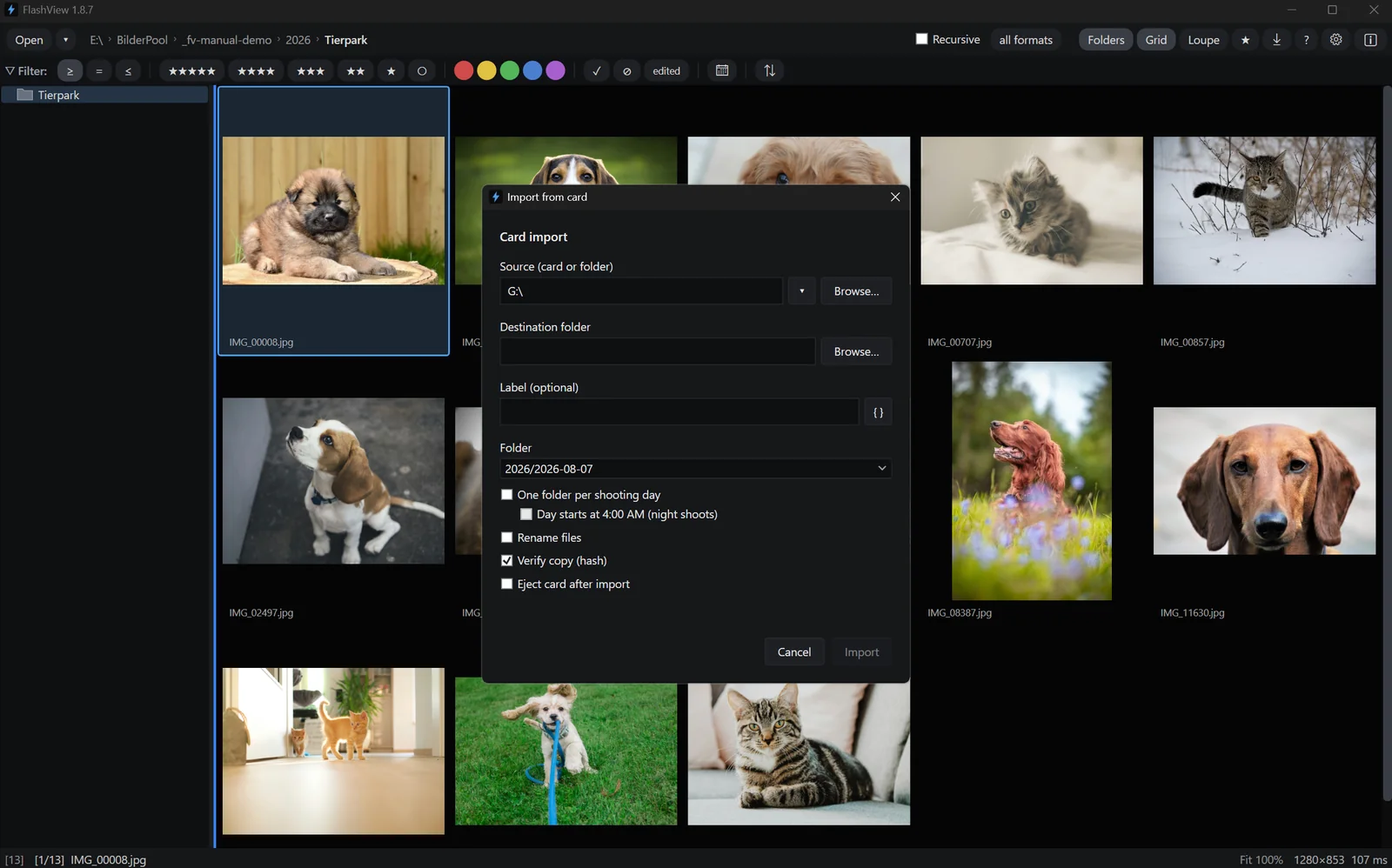
FlashView takes the whole chain from the memory card to the finished image. Affinity takes whatever needs layers.
| Task | With Adobe | Without a subscription |
|---|---|---|
| Read the card, folders by date, renaming | Lightroom Classic | FlashView |
| View, rate, cull | Lightroom Classic, Bridge | FlashView |
| Filter by stars, color, camera, lens, date | Lightroom Classic | FlashView |
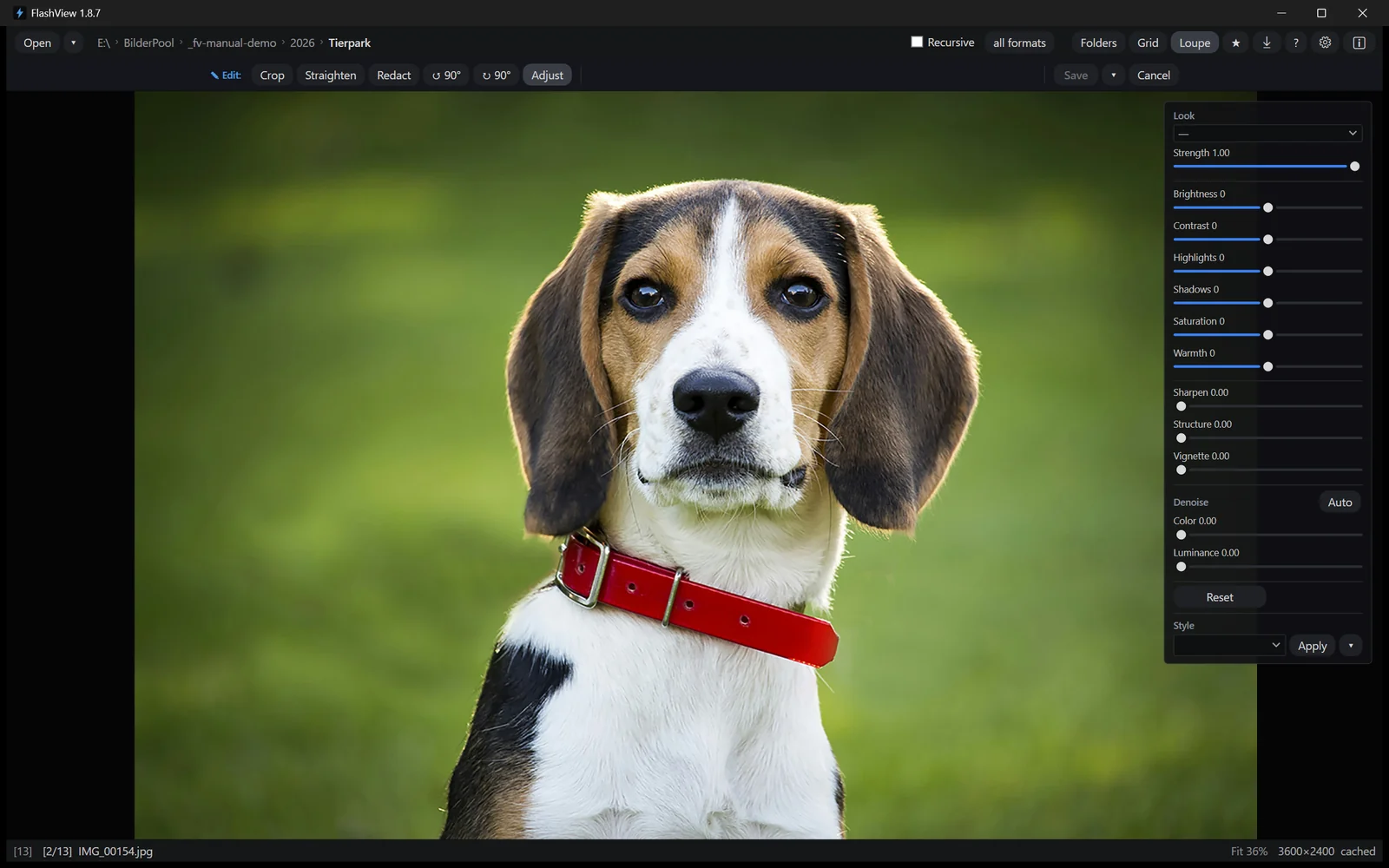
| Raw development, looks, crop | Lightroom Classic | FlashView |
| Export as JPEG | Lightroom Classic | FlashView |
| Layers, masks, retouching, panorama, HDR | Photoshop | Affinity |
Ratings go into standard XMP beside the file, not into a catalog. You open a folder and the pictures are there - a hundred thousand of them if need be, across every subfolder, without an import.
What Affinity is missing: the Lightroom part
If you already use Affinity, you know the gap: Affinity is an image editor, not an image manager. There is no catalog, no fast way to page through a whole shoot, no stars and color labels across a thousand pictures. That is the part FlashView takes on - and it hands Affinity only the pictures that really need layers.
How a picture gets to Affinity
Most pictures never need more than exposure, color and a crop - FlashView does that directly, non-destructively, with the original left untouched. For the one picture where something has to go or a mask is needed, right-click it in the loupe and choose Editing ▸ Edit in Affinity.
Affinity gets the picture as its own file, with your edits so far. You work with layers, masks and live filters, Ctrl+S saves straight back, and FlashView shows the result next to the original. Stars and color label are kept, and in Affinity everything stays editable. In that case you export the finished full-size image from Affinity.
Photoshop works the same way if you keep it: it gets a PSD, and the result comes back on its own there too.
What you get rid of
- The subscription. FlashView is a one-time purchase, and Affinity has been free since October 2025. There is no term after which anything is switched off.
- The AI allowance. Generative features in Photoshop and Lightroom draw credits from a monthly allowance. Adobe sets its size and has changed it several times since 2025. Whatever is left over expires at your next billing date.
- Cloud and app you never ordered. No storage you pay for along the way, no sync that keeps reminding you.
- The catalog. No import before you see a picture, no database that wants to be maintained and backed up.
Making the switch
- Take your ratings along: in Lightroom Classic, select all pictures and choose Save Metadata to File. Stars and color labels are then in the XMP data, and FlashView reads them when you open the folder.
- Edited pictures: FlashView cannot take over Lightroom's development settings. Export whatever you have finished as JPEG or TIFF first.
- Keep the camera profiles: FlashView uses Adobe's camera profiles when they are on the computer. Before you uninstall Lightroom, install the free Adobe DNG Converter - it brings the same profiles.
- Run both for a while: FlashView works directly in your folders and needs no import, so the two can run side by side.
For Lightroom on its own, speed and the catalog, see the comparison with Lightroom.
Try it yourself
FlashView runs for 60 days, complete and free, with no registration, and Affinity is free from Canva. The most honest test is a real shoot from the card to the finished image. Go to the download - after that a one-time purchase, no subscription.